Can You Edit Anilab Subtitles? Complete Customization Guide 2026
Yes, you can edit subtitles in the Anilab app, and it goes way beyond just changing the language. Whether the text feels too small, white subtitles are disappearing into bright scenes, or you simply want a more personalized viewing experience — Anilab’s subtitle customization system puts you in complete control. This guide covers every setting, step by step, completely free.
The Anilab app is one of the most popular free anime streaming platforms in 2026. Unlike other apps that lock subtitle settings behind paywalls, the Anilab APK gives every user — registered or guest — full control over subtitles including font, size, color, opacity, position, and 40+ language options. Let’s get into it.
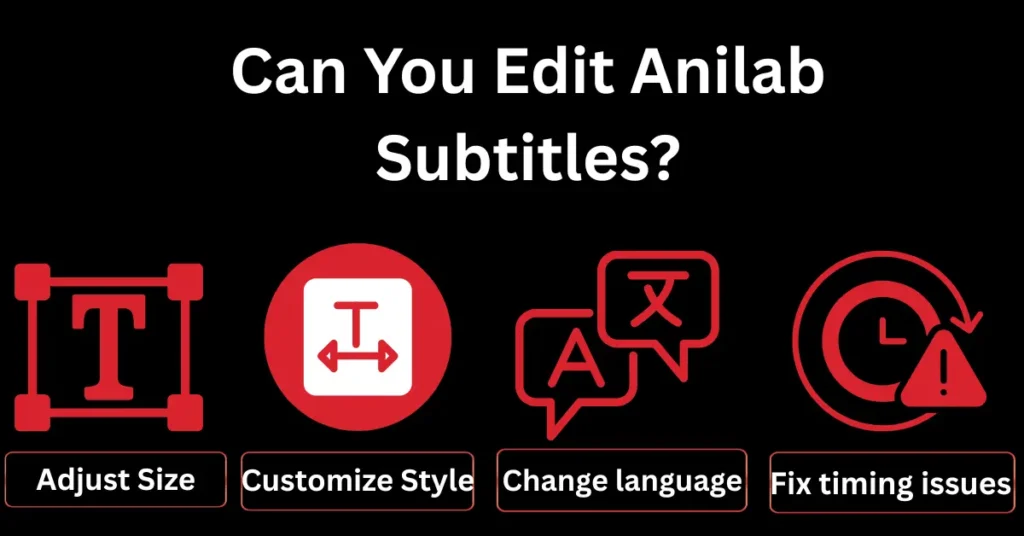
What Can You Customize in Anilab Subtitles?
Here’s a quick overview of every subtitle setting available in the Anilab app:
| Setting | What you can change |
|---|---|
| Font Style | Multiple typefaces (bold, sans-serif, serif) |
| Font Size | Small to Extra-Large slider |
| Text Color | White, Yellow, Cyan, Green, Custom |
| Background Opacity | Transparent to solid box |
| Text Position | Bottom, Center, or Top of screen |
| Subtitle Language | 40+ languages |
| SUB / DUB Toggle | Switch between subbed and dubbed |
| Skip Intro | Enable/disable auto-skip |
How to Access Subtitle Settings — Can You Edit Anilab Subtitles Mid-Episode?
Method 1: Profile Settings
Method 2: In-Player Controls
How to Change Font, Size, Color & Opacity
Font Style:
Go to Profile → Subtitle Settings → tap “Font Style” → choose your preferred typeface. Bold sans-serif works best for fast-paced action anime like Demon Slayer or Jujutsu Kaisen.
Font Size:
Use the “Font Size” slider — drag right to increase. For TV screens via Chromecast or Roku, always set to Large or Extra Large.
Text Color:
Tap “Text Color” → choose from White, Yellow, Cyan, or Green. Yellow is the most readable across both dark and bright scenes.
Background Opacity:
Set the dark box behind subtitle text to 40–60% for the best balance between readability and immersion — especially useful in visually busy scenes.
How to Change Subtitle Language in Anilab APK
Anilab supports 40+ subtitle languages including English, Japanese, Spanish, Arabic, French, Korean, Turkish, Indonesian, and more.
During Playback:
SUB vs DUB on Anilab — How to Switch
SUB (Subbed)
Original Japanese audio + subtitles in your language. Best for the authentic anime experience.
DUB (Dubbed)
Voice-over in your chosen language. Great for casual watching or younger audiences.
Common Anilab Subtitle Problems & Fixes
Problem 1: Subtitles missing when switching episodes
Update to Anilab APK v1.1.3 — this bug has been officially patched in the latest version.
Problem 2: Subtitles Out of Sync
Open the in-player controls → tap the Subtitle icon → adjust Subtitle Delay in milliseconds. You can also switch to SPlayer which has built-in sync tools.
Problem 3: Subtitles missing when switching episodes
Avoid using the in-player toggle for permanent changes. Always go to Profile → Subtitle Settings to save your preferred language globally.
Problem 4: Subtitles Not Showing at All
First, confirm you’re in SUB mode and not watching DUB-only content. Then toggle subtitles off and back on in settings. If the issue still persists, reinstall the latest Anilab APK.
FAQs
Final Word
Still wondering! can you edit Anilab subtitles? Absolutely yes, and no other free anime app in 2026 gives you this level of control. Font, size, color, opacity, position, 40+ languages, SUB/DUB switching, and SPlayer support all free, no subscription needed. Whether you’re watching Attack on Titan, One Piece, or discovering a new season, your subtitles should look exactly how you want them.